Face Director
Change facial expressions, eye direction and head pose after the shoot.
1. Description
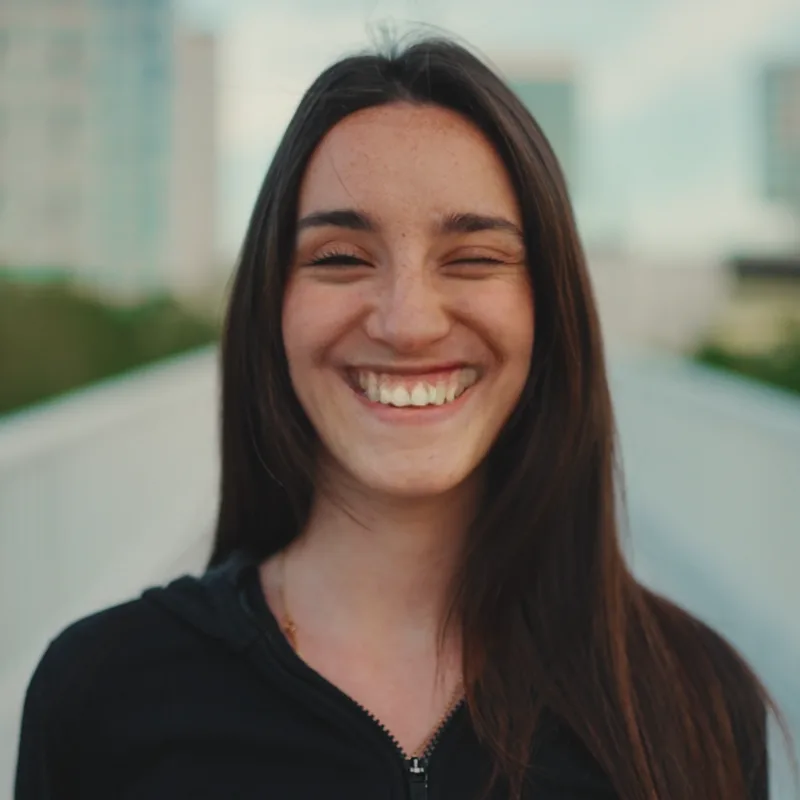
Face Director re-animates a face in your footage. Sliders control the smile, mouth shapes, lips, eyebrows, eye openness, pupil direction, neck and head rotation, so you can fix a performance, repair a continuity error or rescue a blooper without a reshoot.
In After Effects you can also drag handles directly on the face in the Composition panel. In puppet mode, another layer drives the face: its expression, eyes, lips and head motion are transferred to your subject.
Face Director works on one face per layer, the largest in the frame: it finds it in each frame, crops around it, edits it with AI and puts it back into the frame. Face Director is also available as a Photoshop plugin with the expression and rotation controls.
Requirements
- Mac: runs on the GPU through Metal.
- Windows 64-bit: requires an NVIDIA GPU (CUDA). There is no CPU fallback.
2. Installation
2a. Baskl installer (all host apps)
Every Baskl plugin installs through the Baskl installer. It sets up AI Machine, the local engine the plugins run on, and puts Face Director in the right place for After Effects, Premiere Pro and OFX hosts (DaVinci Resolve, Nuke). Close your host apps before running it.
macOS
- Click Download on baskl.ai, unzip
Baskl.Installer.zipand openMac/Baskl Installer.app. You need an Apple Silicon Mac; the installer stops on Intel Macs. - If macOS asks, confirm you want to open an app downloaded from the internet, then enter your Mac password so the installer can write to the system plug-in folders.
- Click Let's Get Started, select Face Director in the plugin list and click Install. The first install also downloads AI Machine, so give it a few minutes.
- When you see Installation Complete, restart your host app. The effect is in the Baskl category.
Windows
- Click Download on baskl.ai, unzip
Baskl.Installer.zipand runWindows\Baskl Installer.exe. - Click Yes when Windows asks to allow the app to make changes. The installer needs administrator rights.
- Click Let's Get Started, select Face Director in the plugin list and click Install. On NVIDIA cards the installer picks the matching CUDA build for you. The first install also downloads AI Machine, so give it a few minutes.
- When you see Installation Complete, restart your host app. The effect is in the Baskl category.
- On Mac, the first launch prepares the AI models for your machine, which can take a minute. Later launches load them from a cache.
- If no face is found in a frame, Face Director shows an error for that frame.
- Without a license Face Director runs as a trial with a watermark.
Activating your license
- After Effects / Premiere Pro: in After Effects, click Register at the top of the effect in Effect Controls (next to Reset), paste your license key and click Activate. In Premiere Pro, click the small icon button at the top right of the effect in Effect Controls to open the same dialog. The license is saved for the whole computer, so registering in one of the two apps covers the other.
- Resolve / Nuke: click Register at the top of the effect's controls, paste your license key and confirm. Once activated, the button reads License Info.
- Where to find your key: if you bought on baskl.ai, it is in your purchase email and under Account → My Licenses, with a Copy button. If you bought on aescripts + aeplugins, activate through the aescripts + aeplugins manager app, or paste the key from your aescripts account into the same Register dialog.
- Without a license, Face Director runs as a trial: everything works, but renders carry a watermark until you register. Activation needs an internet connection, and each key works on a limited number of computers (shown under My Licenses).
3. Parameters
Help and license
- Help / Contact
-
Opens the Baskl contact page with your plugin version filled in.
- Register
-
Resolve and Nuke: opens the license window. In After Effects and Premiere Pro, click Options next to the effect name instead.
Face
- Upscale
-
Renders the edited face at twice the resolution with an AI upscaler. Sharper on large faces, slower. Off by default.
- Input uncropped frame
-
After Effects: always analyses the whole layer, not only the part being rendered. Turn it on if the face is not found when the layer is partly off screen or masked. Off by default.
- Crop Padding
-
How much area around the face is edited, 1.5 to 3.2 (default 2.3). Raise it to include more hair, neck and background; lower it to focus on the face. Leave as is unless you see a seam.
Driver
Puppet mode: let another clip animate the face. Leave Driver Image empty to use only the sliders.
- Driver Image
-
The layer whose face drives yours. In Resolve and Nuke this is a second input on the node.
- Eyes Weight
-
How much of the driver's eye openness and blinks is copied, 0% to 100% (default 100%).
- Lip Weight
-
How much of the driver's mouth opening is copied, 0% to 100% (default 100%).
- Pose Weight
-
How much of the driver's head rotation and position is copied, 0% to 100% (default 100%). Only used when Relative Motion is off.
- Expression Weight
-
How much of the driver's facial expression is copied, 0% to 100% (default 100%).
- Relative Motion
-
On (default): keeps your subject's own head pose and copies only the expression. Off: the head also follows the driver's pose, by Pose Weight.
- Driving Option
-
How the driver's motion is applied.
- Exaggeration
-
Pushes the driver's expression further (positive) or tones it down (negative), -1 to 1 (default 0).
Expression
All sliders go from -100 to 100, with 0 (no change) as default. Left and right are as seen in the image.
- Eyebrows
-
Raises or lowers both eyebrows.
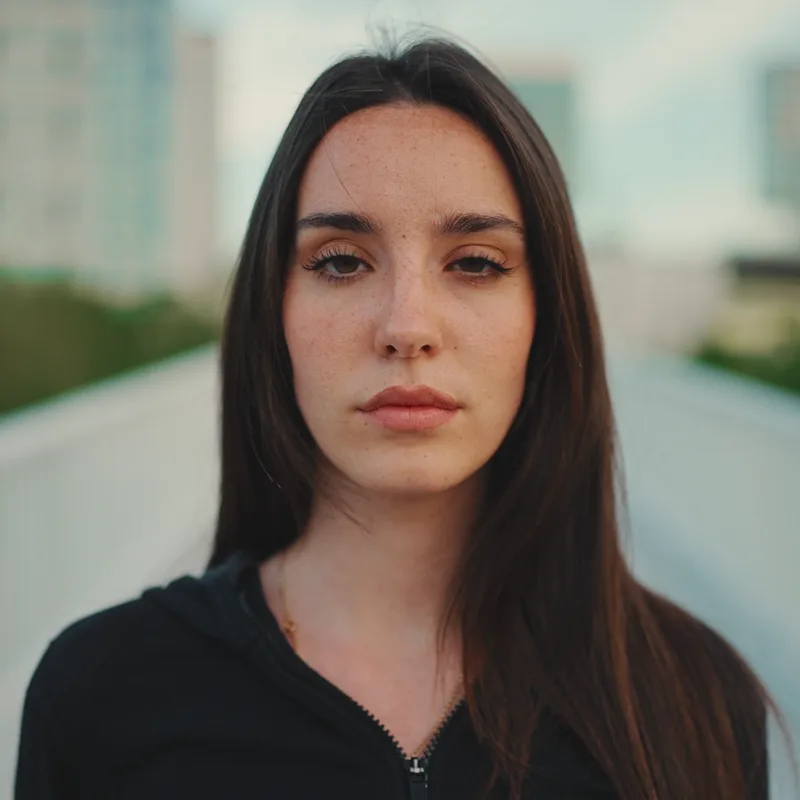
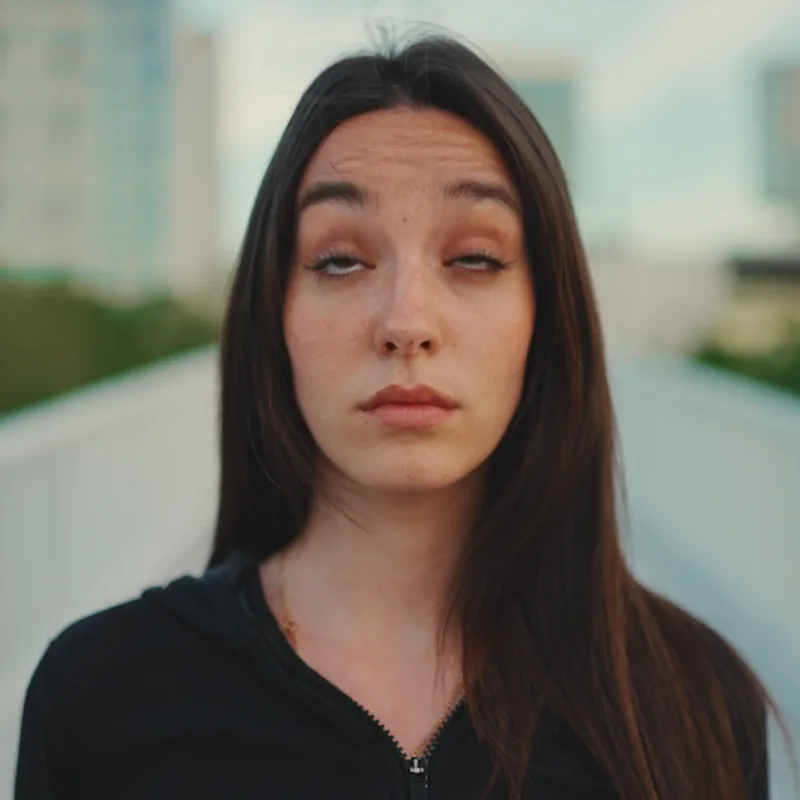
Eyebrows 80. - Lock Eyes
-
When on (default), Left Eye Open controls both eyes and Right Eye Open is disabled.
- Left Eye Open
-
Opens or closes the left eye (both eyes when Lock Eyes is on).
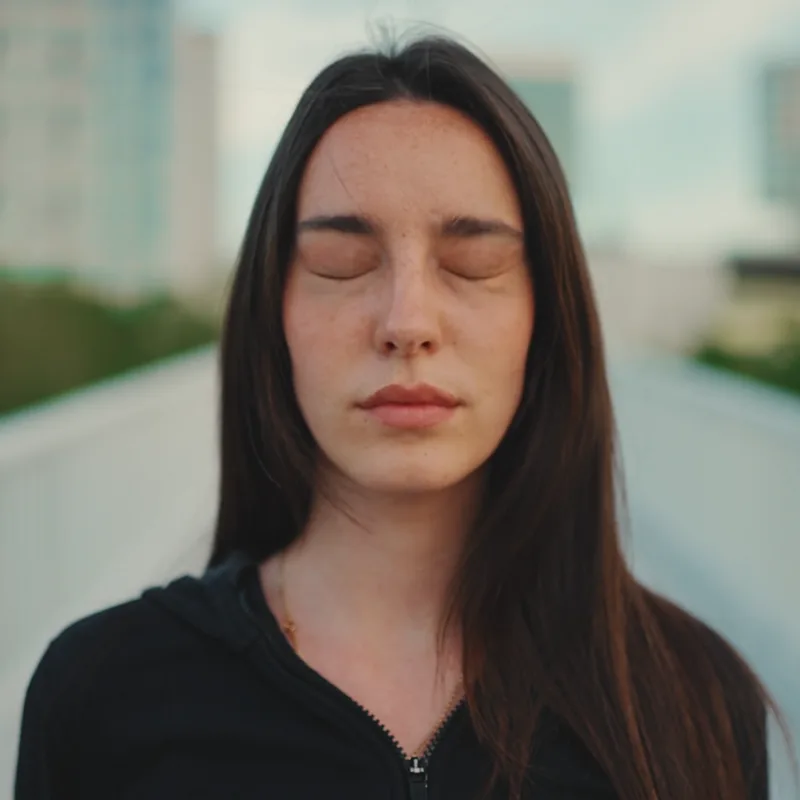
Left Eye Open -100, with Lock Eyes on. - Right Eye Open
-
Opens or closes the right eye. Only available when Lock Eyes is off.
- Lock Pupils
-
When on (default), the left pupil sliders move both pupils and the right pupil sliders are disabled.
- Left Pupil X / Left Pupil Y
-
Moves the gaze of the left pupil (both pupils when Lock Pupils is on) horizontally and vertically.
- Right Pupil X / Right Pupil Y
-
Moves the right pupil on its own. Only available when Lock Pupils is off.
- Smile
-
Adds a smile; negative values do the opposite.
Smile 80. - AAA / EEE / WOO
-
Mouth shapes for the vowels A, E and O. Combine them to change what the mouth seems to say.
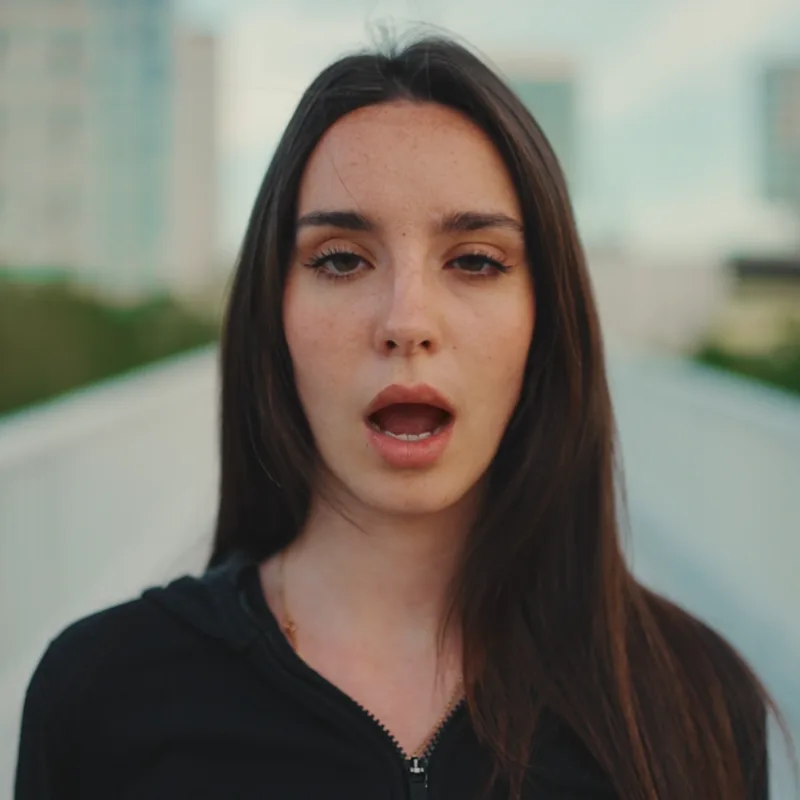
AAA 80. - Upper Lip
-
Raises or lowers the upper lip.
- Lower Lip
-
Raises or lowers the lower lip.
- Neck
-
Stretches or shortens the neck.
Rotation
Pitch, Yaw and Roll go from -100 to 100, with 0 (no change) as default.
- Mode
-
How the rotation sliders map to degrees.
- Pitch
-
Tilts the head up (positive) or down (negative).
- Yaw
-
Turns the head right (positive) or left (negative), as seen by the viewer.
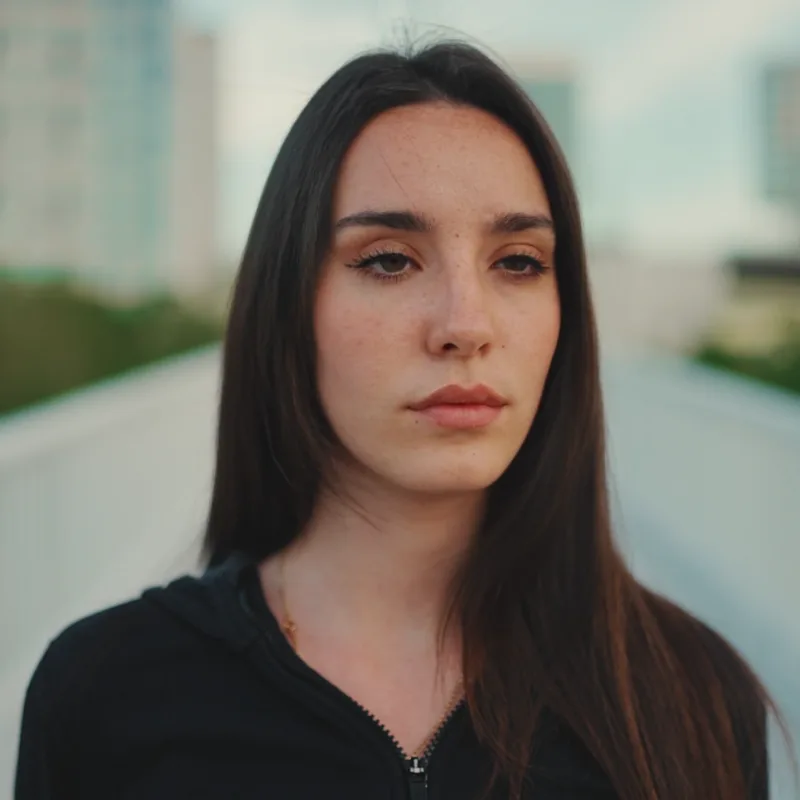
Yaw 60: the head turns. - Roll
-
Tilts the head towards one shoulder.