More Motion Blur
Add motion blur with AI.
1. Description
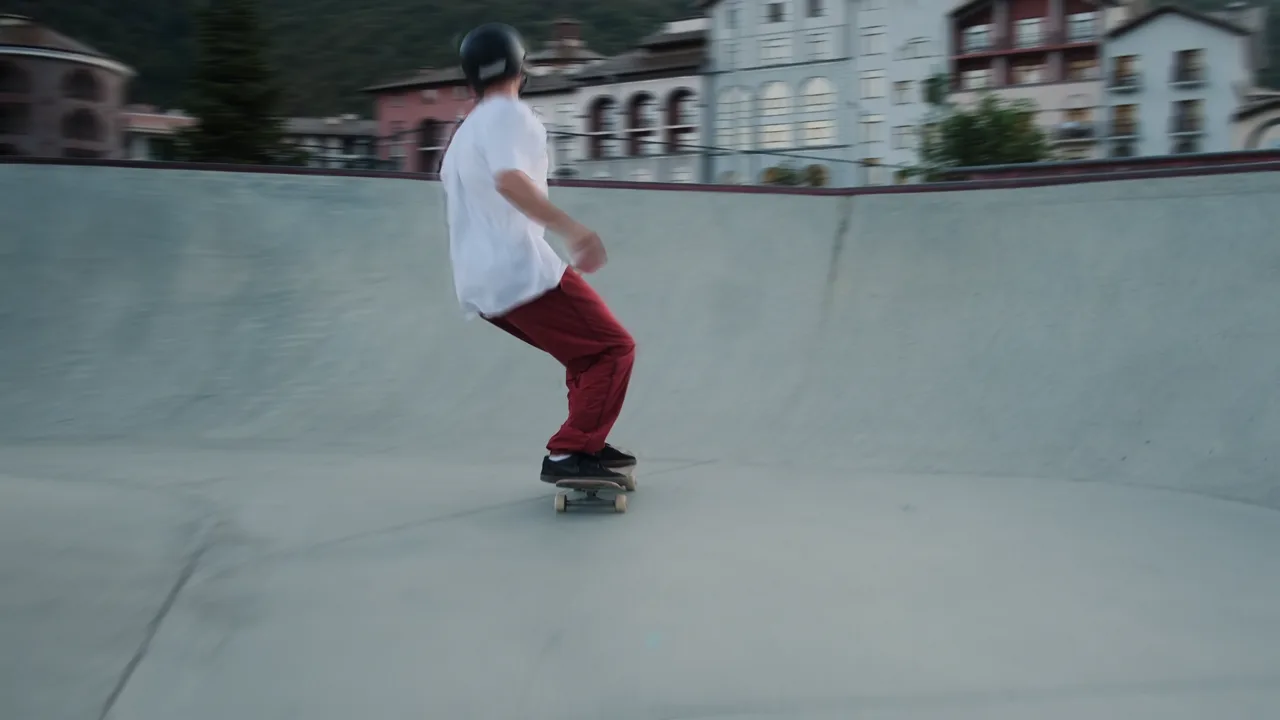
More Motion Blur adds realistic motion blur to footage that has none, or not enough. An AI optical-flow model measures how every pixel moves between frames, then the effect smears the image along that motion by blending many in-between frames.
It works on any layer with no masks or tracking. Transparency is kept and blurred along with the image. On a layer's first frame it looks at the next frame instead, and when a frame repeats (footage at a lower frame rate than the comp) it looks one frame further back.
Frames are processed in 8 bits per channel, so values above white are clipped in 32-bit projects.
Requirements
- Mac (Apple Silicon or Intel): runs on the GPU through Metal when available, otherwise on the CPU.
- Windows 64-bit: uses an NVIDIA GPU (CUDA) when available, otherwise the CPU.
- The Baskl installer is required: it installs the AI engine and downloads the AI model (about 25 MB).
2. Installation
2a. Baskl installer (all host apps)
Every Baskl plugin installs through the Baskl installer. It sets up AI Machine, the local engine the plugins run on, and puts More Motion Blur in the right place for After Effects, Premiere Pro and OFX hosts (DaVinci Resolve, Nuke). Close your host apps before running it.
macOS
- Click Download on baskl.ai, unzip
Baskl.Installer.zipand openMac/Baskl Installer.app. You need an Apple Silicon Mac; the installer stops on Intel Macs. - If macOS asks, confirm you want to open an app downloaded from the internet, then enter your Mac password so the installer can write to the system plug-in folders.
- Click Let's Get Started, select More Motion Blur in the plugin list and click Install. The first install also downloads AI Machine, so give it a few minutes.
- When you see Installation Complete, restart your host app. The effect is in the Baskl category.
Windows
- Click Download on baskl.ai, unzip
Baskl.Installer.zipand runWindows\Baskl Installer.exe. - Click Yes when Windows asks to allow the app to make changes. The installer needs administrator rights.
- Click Let's Get Started, select More Motion Blur in the plugin list and click Install. On NVIDIA cards the installer picks the matching CUDA build for you. The first install also downloads AI Machine, so give it a few minutes.
- When you see Installation Complete, restart your host app. The effect is in the Baskl category.
Activating your license
- After Effects / Premiere Pro: in After Effects, click Register at the top of the effect in Effect Controls (next to Reset), paste your license key and click Activate. In Premiere Pro, click the small icon button at the top right of the effect in Effect Controls to open the same dialog. The license is saved for the whole computer, so registering in one of the two apps covers the other.
- Resolve / Nuke: click Register at the top of the effect's controls, paste your license key and confirm. Once activated, the button reads License Info.
- Where to find your key: if you bought on baskl.ai, it is in your purchase email and under Account → My Licenses, with a Copy button. If you bought on aescripts + aeplugins, activate through the aescripts + aeplugins manager app, or paste the key from your aescripts account into the same Register dialog.
- Without a license, More Motion Blur runs as a trial: everything works, but renders carry a watermark until you register. Activation needs an internet connection, and each key works on a limited number of computers (shown under My Licenses).
3. Parameters
Blur
- Strength
-
How long the blur trail is (default 65%). Up to 100% it works like opening the shutter: 100% spans the full motion from the previous frame. Above 100% (type values up to 500%) the motion is exaggerated beyond what happened. 0% turns the effect off.
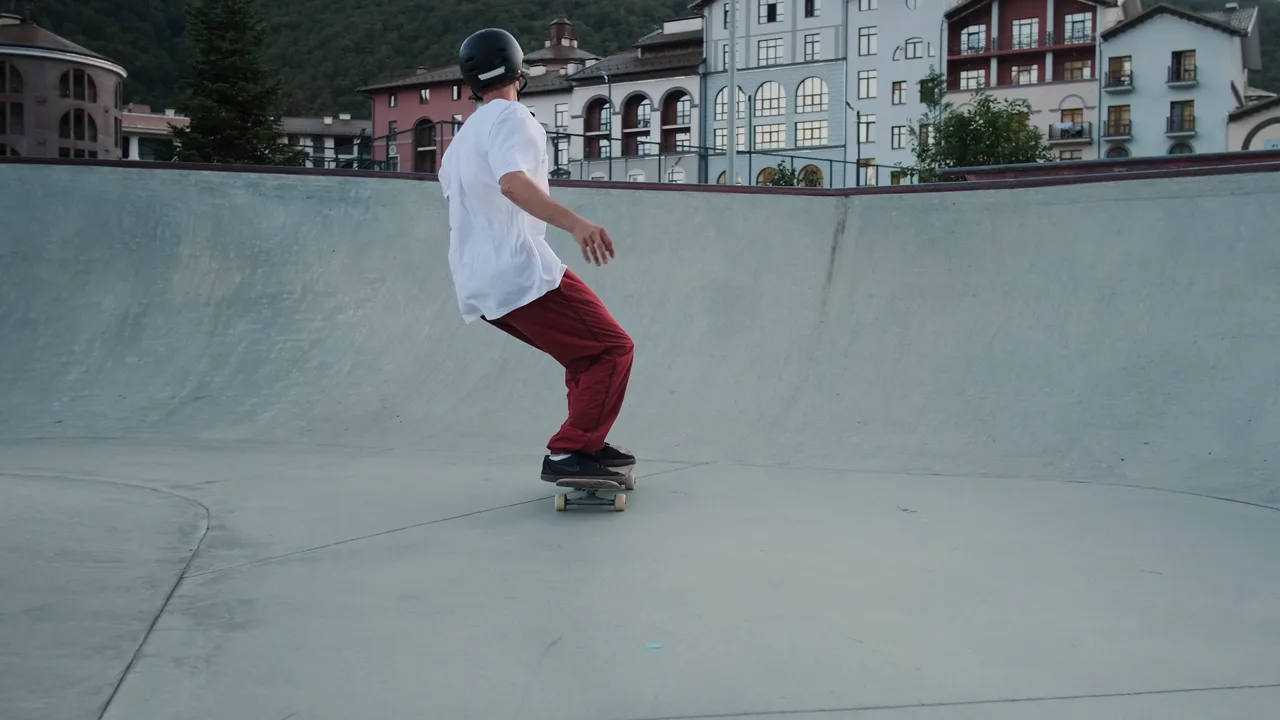
Strength 200%: the hand and legs trail with motion blur. - Blur Samples
-
How many in-between frames are blended into the blur, from 3 to 50 (default 30). More is smoother and slower: raise it if the trail looks stepped, lower it to render faster.
Motion
- Motion Source
-
Optional layer to measure motion from. The movement is detected on that layer and the blur is applied to this one, for example the original footage when this layer has been heavily processed. Set to None (default) to use this layer.
- Show Motion Vectors
-
Draws arrows over the image showing the motion the effect detected. Useful to check what is being blurred and in which direction; turn it off for the final render.
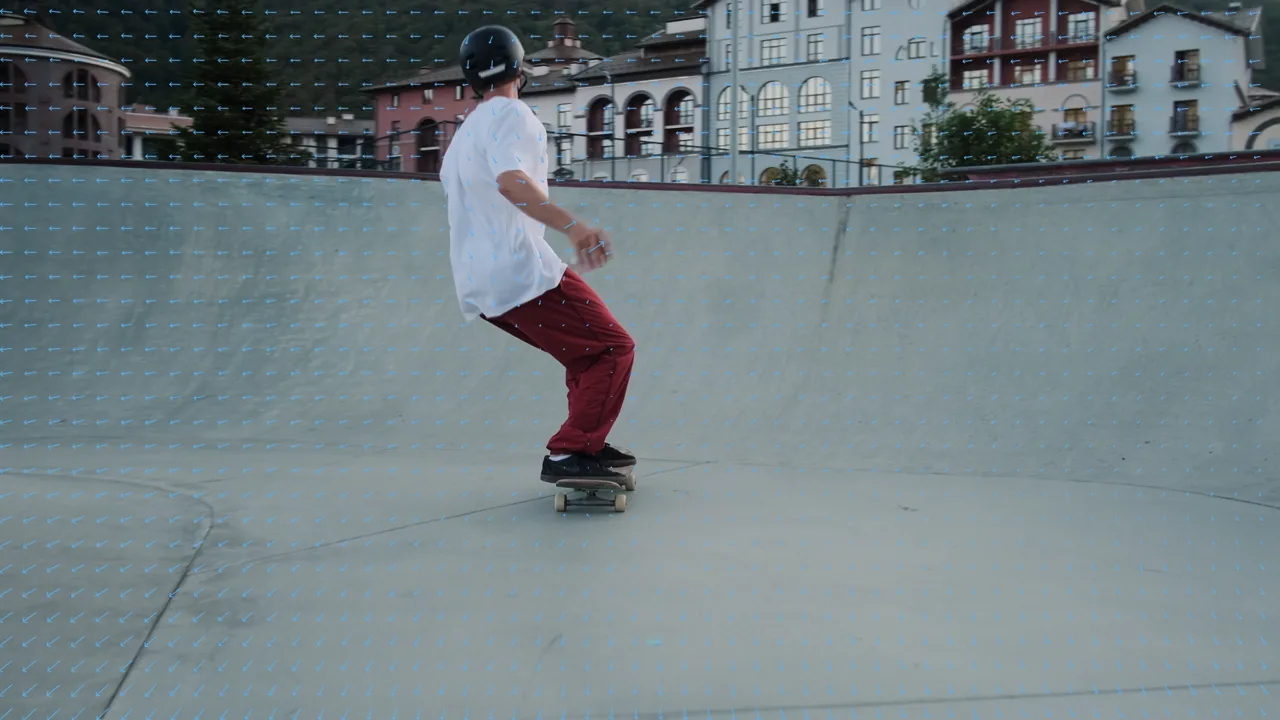
The detected motion drawn as arrows. - Vector Color
-
Colour of the motion arrows (light blue by default). In After Effects it only appears when Show Motion Vectors is on.