Vision 2
See your footage the way an AI sees it: boxes, labels, skeletons and attention maps.
1. Description
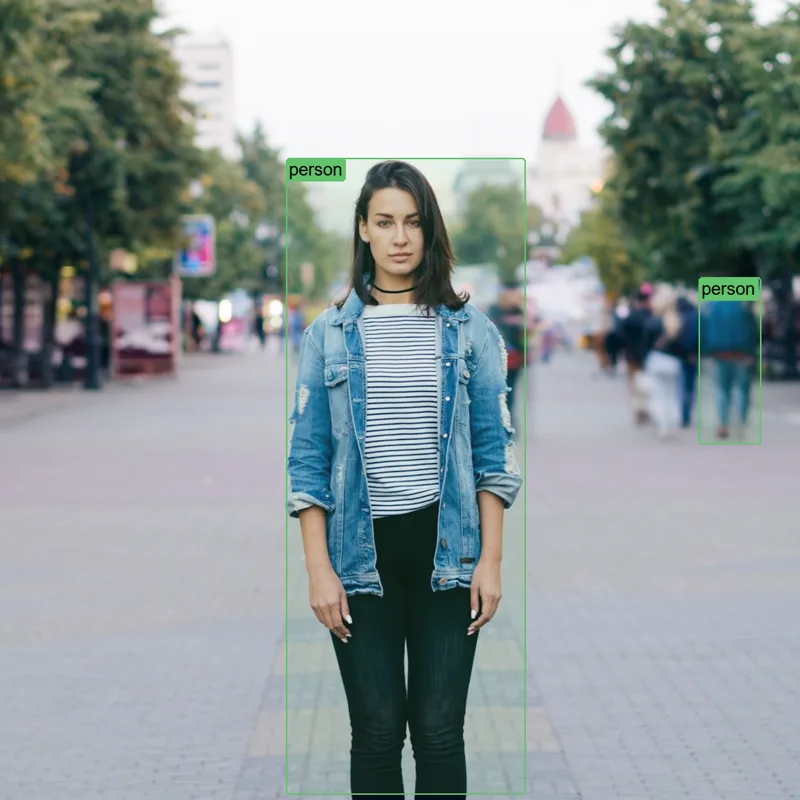
Vision 2 runs computer vision models on your footage and draws what they find, for surveillance, sci-fi HUD and dystopian looks. It has six modes: classic and open-vocabulary object detection, pose estimation, face detection, saliency maps and scene captioning.
You choose which objects to look for, rename their labels, and style the boxes, labels, fonts, colors and network lines that connect detections. Tracking keeps boxes steady and gives each object a consistent color and ID.
Render the overlay on black or on a transparent background to use it as a matte and combine it with other effects, or pixelate what is detected to anonymize faces.
Requirements
- Mac: runs on the GPU through Metal when available, otherwise on the CPU.
- Windows 64-bit: uses an NVIDIA GPU (CUDA) when available, otherwise the CPU.
2. Installation
2a. Baskl installer (all host apps)
Every Baskl plugin installs through the Baskl installer. It sets up AI Machine, the local engine the plugins run on, and puts Vision 2 in the right place for After Effects, Premiere Pro and OFX hosts (DaVinci Resolve, Nuke). Close your host apps before running it.
macOS
- Click Download on baskl.ai, unzip
Baskl.Installer.zipand openMac/Baskl Installer.app. You need an Apple Silicon Mac; the installer stops on Intel Macs. - If macOS asks, confirm you want to open an app downloaded from the internet, then enter your Mac password so the installer can write to the system plug-in folders.
- Click Let's Get Started, select Vision 2 in the plugin list and click Install. The first install also downloads AI Machine, so give it a few minutes.
- When you see Installation Complete, restart your host app. The effect is in the Baskl category.
Windows
- Click Download on baskl.ai, unzip
Baskl.Installer.zipand runWindows\Baskl Installer.exe. - Click Yes when Windows asks to allow the app to make changes. The installer needs administrator rights.
- Click Let's Get Started, select Vision 2 in the plugin list and click Install. On NVIDIA cards the installer picks the matching CUDA build for you. The first install also downloads AI Machine, so give it a few minutes.
- When you see Installation Complete, restart your host app. The effect is in the Baskl category.
- Each mode and model size loads its own AI model the first time you use it, so the first frame after switching takes longer.
- Without a license Vision 2 runs as a trial with a watermark.
Activating your license
- After Effects / Premiere Pro: in After Effects, click Register at the top of the effect in Effect Controls (next to Reset), paste your license key and click Activate. In Premiere Pro, click the small icon button at the top right of the effect in Effect Controls to open the same dialog. The license is saved for the whole computer, so registering in one of the two apps covers the other.
- Resolve / Nuke: click Register at the top of the effect's controls, paste your license key and confirm. Once activated, the button reads License Info.
- Where to find your key: if you bought on baskl.ai, it is in your purchase email and under Account → My Licenses, with a Copy button. If you bought on aescripts + aeplugins, activate through the aescripts + aeplugins manager app, or paste the key from your aescripts account into the same Register dialog.
- Without a license, Vision 2 runs as a trial: everything works, but renders carry a watermark until you register. Activation needs an internet connection, and each key works on a limited number of computers (shown under My Licenses).
3. Presets
Pick one from the Preset menu at the top of the effect (After Effects and Premiere Pro). A preset sets the controls below, then the menu goes back to Choose Preset... so you can keep editing.
4. Looks
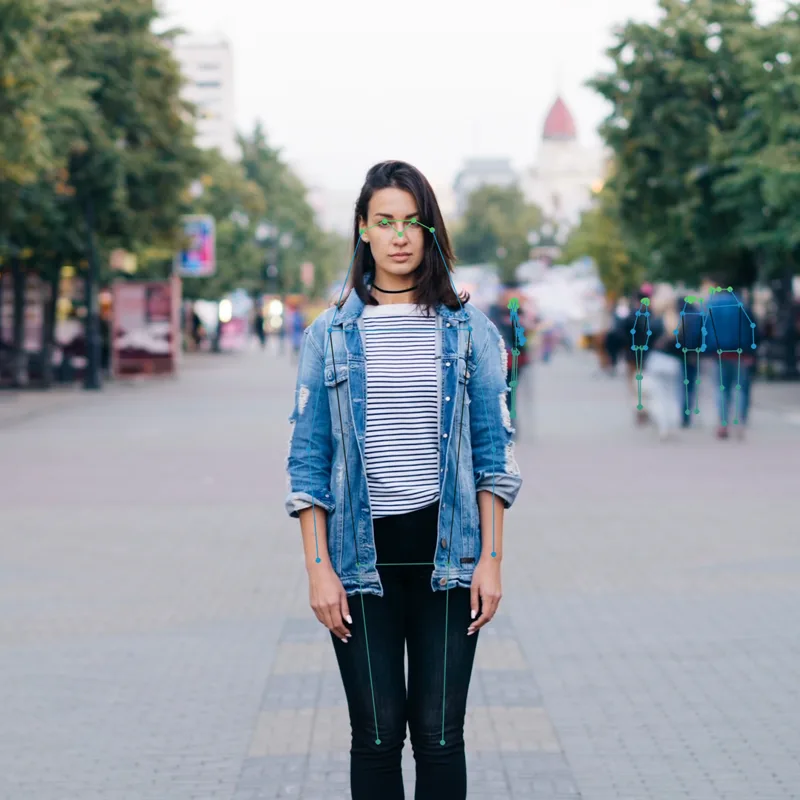
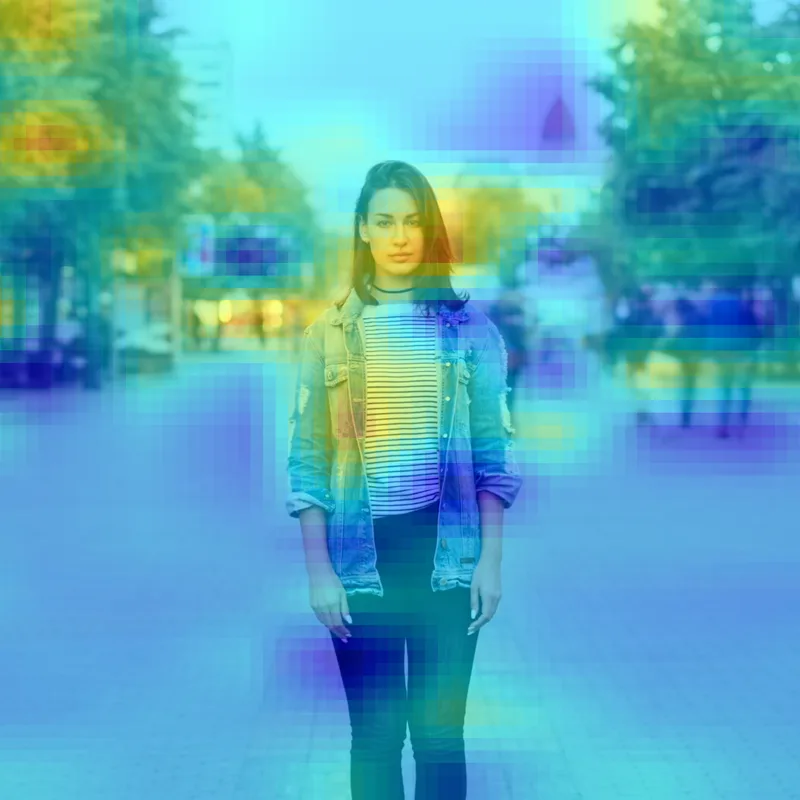
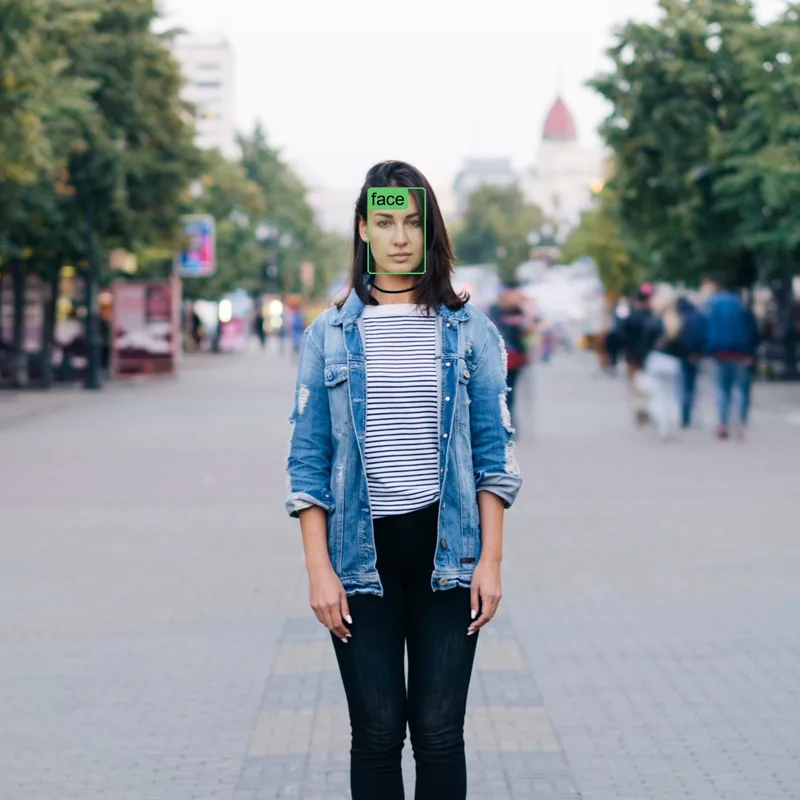
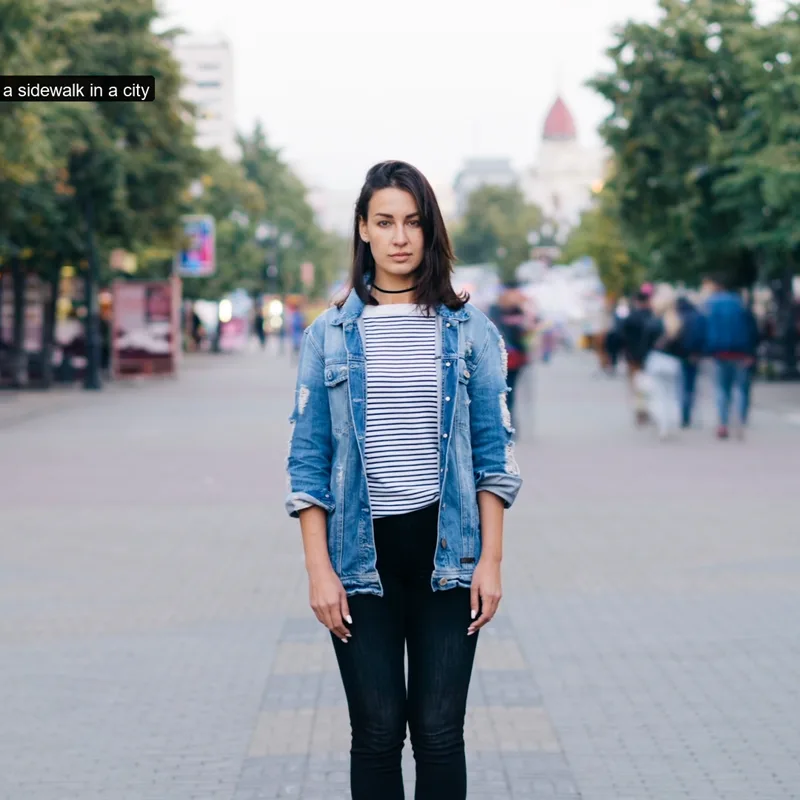
The same frame in each Mode, at default settings.
5. Parameters
Help and license
- Help / Contact
-
Opens the Baskl contact page with your plugin version filled in.
- Register
-
Resolve and Nuke: opens the license window. In After Effects and Premiere Pro, click Options next to the effect name instead.
Mode
In After Effects and Premiere Pro, controls that do not apply to the current mode are hidden.
- Preset
-
Applies one of the presets above. After Effects and Premiere Pro only.
- Mode
-
What the AI does.
Detection
Used by the detection and pose modes.
- Model Size
-
Trade speed for accuracy.
- Search for Objects
-
Click Edit to list the object names to keep, separated by commas; leave empty to show everything. The window lists the names the current model knows: double-click one to add it. In Resolve and Nuke, type the list into the text field.
- Confidence Threshold
-
Hides detections the AI is less sure of, 0% to 100% (default 50%). Lower shows more, including mistakes. In Pose Estimation the scale is finer at low values.
- Image Size
-
Resolution the AI analyses, 32 to 4096 (default 640). Higher finds smaller objects but is slower. It never goes above the size of the frame.
- Overlap Tolerance
-
How much two boxes may overlap before the weaker one is removed, 0 to 1 (default 0.6). Lower removes more duplicates. Leave as is in most cases.
- Max Detections
-
Most objects shown per frame, 0 to 10000 (default 300).
- Enable Tracking
-
Follows objects from frame to frame: boxes are steadier, each object keeps its color, and labels get an ID number. Also analyses the previous and next frame, so it is slower. Off by default.
Display
- Render
-
What the graphics are drawn on.
- Text Position
-
Scene Captioning: where the caption is placed (top left corner of the caption).
- Color Palette
-
Colors for boxes, labels and skeletons: Random (default), Poppy, Military, Pastel, Turbo, Red Alert, Neon, Sunset or Retro. Each object type gets its own color.
- Pixelate
-
Pixelates the image inside each box, 0 to 256 (default 0, off). The value is the block size: higher is blockier.
- Show Boxes
-
Draws a box around each detection (on by default).
- Box Corner Radius
-
Rounds the corners of boxes and label backgrounds, 0 to 40 (default 5).
- Fill Opacity
-
Fills each box with its color, 0% to 100% (default 12%).
- Line Width
-
Thickness of box outlines, skeletons and network lines, 0 to 20 (default 2).
- Show Labels
-
Writes the object name at the top of each box (on by default).
- Show Confidence
-
Adds how sure the AI is about each detection (off by default).
- Show as Percentage
-
Shows confidence as a percentage (on by default) instead of a value from 0 to 1.
- Font
-
Click Select to choose the font for labels and captions from a preview list.
- Font Size
-
Size of labels and captions, 8 to 72 (default 24).
- Text Background Opacity
-
Opacity of the panel behind labels and captions, 0% to 100% (default 90%).
- Text Background Color
-
Scene Captioning: color of the panel behind the caption (default black).
- Font Color
-
Scene Captioning: color of the caption text (default white).
- Translations
-
Click Edit to rename object labels, for example car to voiture, or to anything you like. Add one row per name. In Resolve and Nuke, type pairs as
car=voiture, person=target. - Network Lines
-
Connects detections to each other with lines, like an investigation board (off by default). Not available in Pose Estimation.
- Network Connections
-
How many nearest neighbours each detection connects to, 1 to 5 (default 3).
- Network Type
-
Shape of the network lines.
Saliency Map
Used when Mode is Saliency Map.
- Model
-
Which AI produces the map.
- Output Mode
-
How the map is shown.
- Colormap
-
Colors of the heatmap: Jet (default), Hot, Viridis, Plasma, Inferno, Magma or Turbo.
- Overlay Opacity
-
Heatmap Overlay: how strongly the heatmap covers the footage, 0 to 1 (default 0.5).
- Threshold
-
Removes weak attention below this value, 0 to 1 (default 0).
- Blur Radius
-
Softens the map, 0 to 50 (default 0).
- Grid Resolution
-
Turns the map into square blocks, this many across the short side, 0 to 128 (default 64). 0 keeps it smooth.
- Tile Count
-
Splits the frame into a grid of tiles analysed separately (1 to 8, default 1) for more local detail. Slower with more tiles.
- Attention Head (-1 = avg)
-
SimDINOv2: shows one of the model's 12 attention heads (0 to 11), or the average of all of them (-1, default). Each head picks up different things.
- Target Class (-1 = auto)
-
Vanilla Gradients: the object class (0 to 999) whose evidence is shown. Leave at -1 to use whatever the model sees most.