CorridorKey
A neural green screen keyer, built on the open-source CorridorKey by Corridor Digital.
1. Description
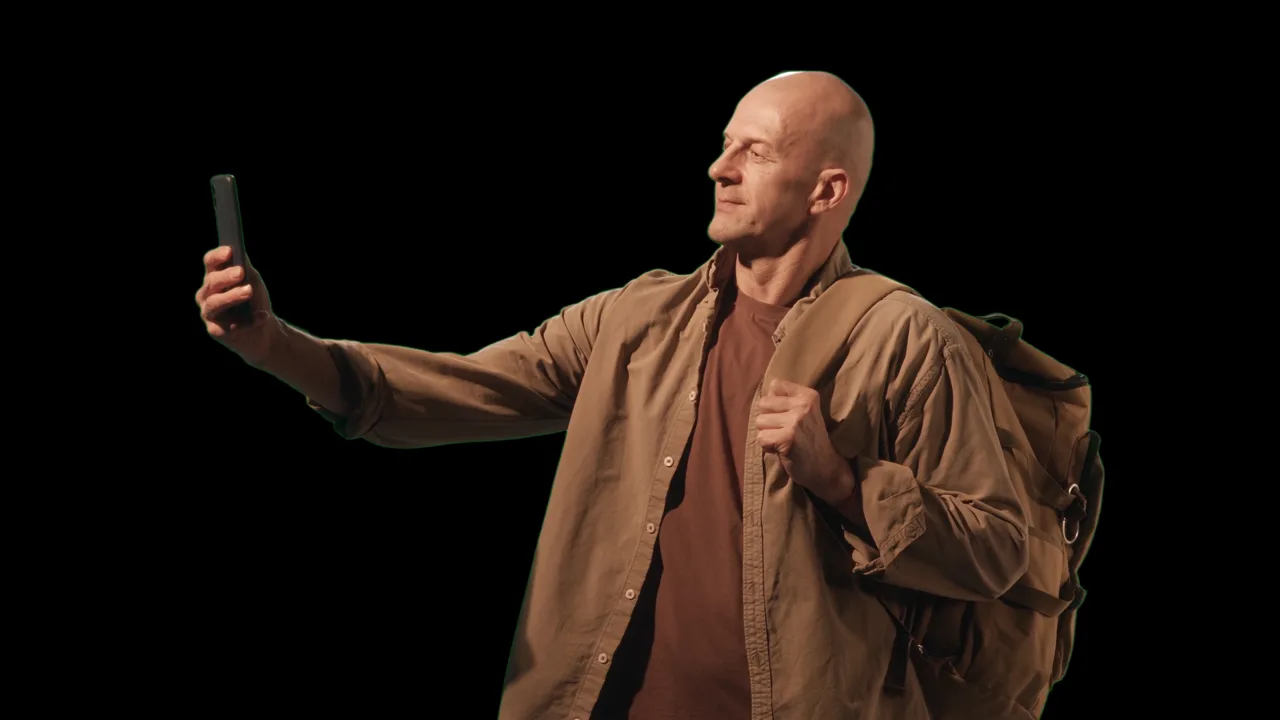
CorridorKey is a plugin version of the open-source CorridorKey project by Corridor Digital. Instead of picking a key colour, it uses AI to separate the subject from the green screen and keep soft, detailed edges.
It works in two steps. First it makes a rough matte of the subject automatically, or takes your own Alpha Hint. Then the CorridorKey network refines that rough matte into the final alpha. The effect is called Corridor Key and sits in the Baskl category.
Changing Output or Despill Strength reuses the last key, so those update quickly.
Requirements
- Mac: Apple Silicon or Intel. Runs on the GPU when available, otherwise the CPU.
- Windows: 64-bit. Uses an NVIDIA GPU (CUDA) when available, otherwise the CPU, which is much slower.
- Quality 2048 needs a GPU with a lot of video memory.
- Disk: about 850 MB of AI models, downloaded on first use.
2. Installation
2a. Baskl installer (all host apps)
Every Baskl plugin installs through the Baskl installer. It sets up AI Machine, the local engine the plugins run on, and puts CorridorKey in the right place for After Effects, Premiere Pro and OFX hosts (DaVinci Resolve, Nuke). Close your host apps before running it.
macOS
- Click Download on baskl.ai, unzip
Baskl.Installer.zipand openMac/Baskl Installer.app. You need an Apple Silicon Mac; the installer stops on Intel Macs. - If macOS asks, confirm you want to open an app downloaded from the internet, then enter your Mac password so the installer can write to the system plug-in folders.
- Click Let's Get Started, select CorridorKey in the plugin list and click Install. The first install also downloads AI Machine, so give it a few minutes.
- When you see Installation Complete, restart your host app. The effect is in the Baskl category.
Windows
- Click Download on baskl.ai, unzip
Baskl.Installer.zipand runWindows\Baskl Installer.exe. - Click Yes when Windows asks to allow the app to make changes. The installer needs administrator rights.
- Click Let's Get Started, select CorridorKey in the plugin list and click Install. On NVIDIA cards the installer picks the matching CUDA build for you. The first install also downloads AI Machine, so give it a few minutes.
- When you see Installation Complete, restart your host app. The effect is in the Baskl category.
- The first render downloads the AI models: about 400 MB for the keyer, plus about 450 MB for the automatic rough matte (not needed if you always use an Alpha Hint). This can take a few minutes, once.
- CorridorKey is name-your-price and needs no license key.
3. Parameters
General
- Help / Contact
-
Opens the Baskl contact page in your browser.
- Reconnect
-
Only shown when the effect can't reach AI MACHINE. Start AI MACHINE, then click it.
Keying
- Mode
-
How the frame is sent to the network.
- Alpha Hint
-
Optional. A layer with a rough black-and-white matte of the subject (white = keep) that replaces the automatic rough matte. It must be the same size as the frame. Leave it empty to let CorridorKey make the rough matte itself. In Resolve and Nuke it is an extra input on the node.
- Quality
-
Size the network works at. Higher keeps finer edge detail but is slower and uses more video memory.
- Auto Crop
-
Crops to the area around the subject before keying, so the network spends its resolution on the subject. On by default. Full Frame mode only.
Output
- Output
-
What the effect returns.
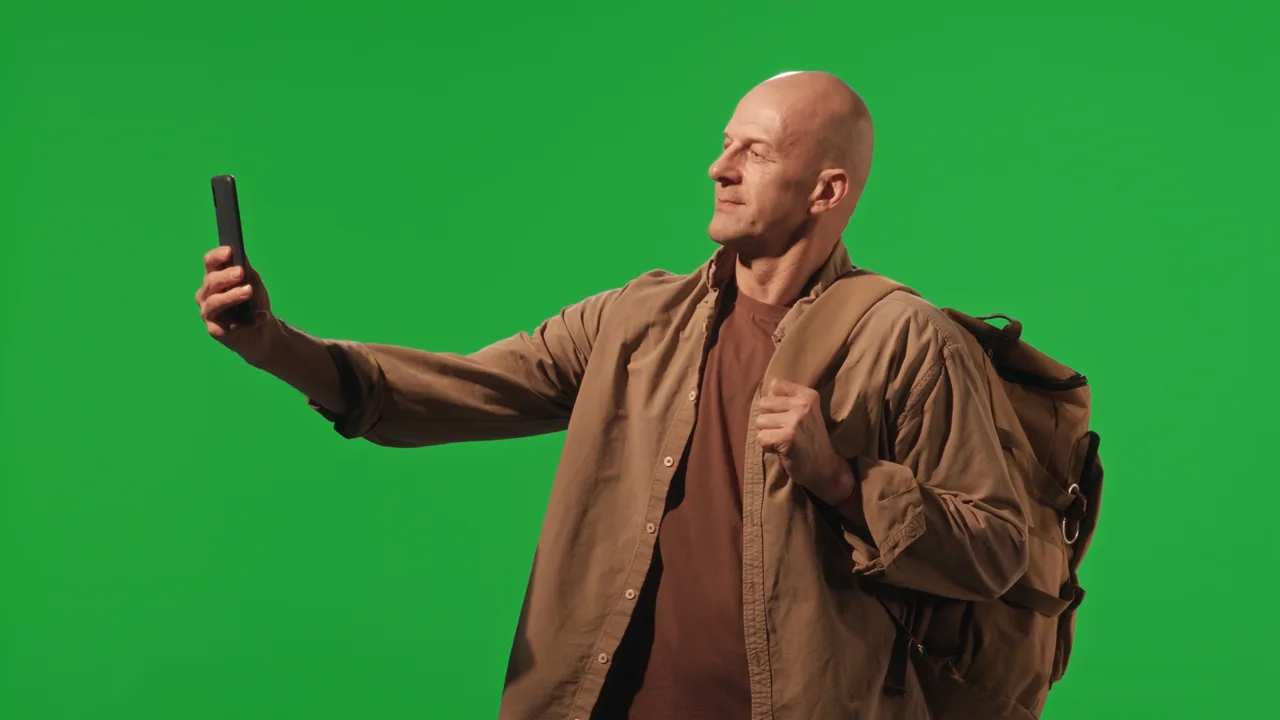
Cutout, shown here over black.

Cutout against Matte. - Despill Strength
-
Removes green spill from the subject's colours, from 0 (off, default) to 1 (full). Affects Cutout and Foreground, not Matte.
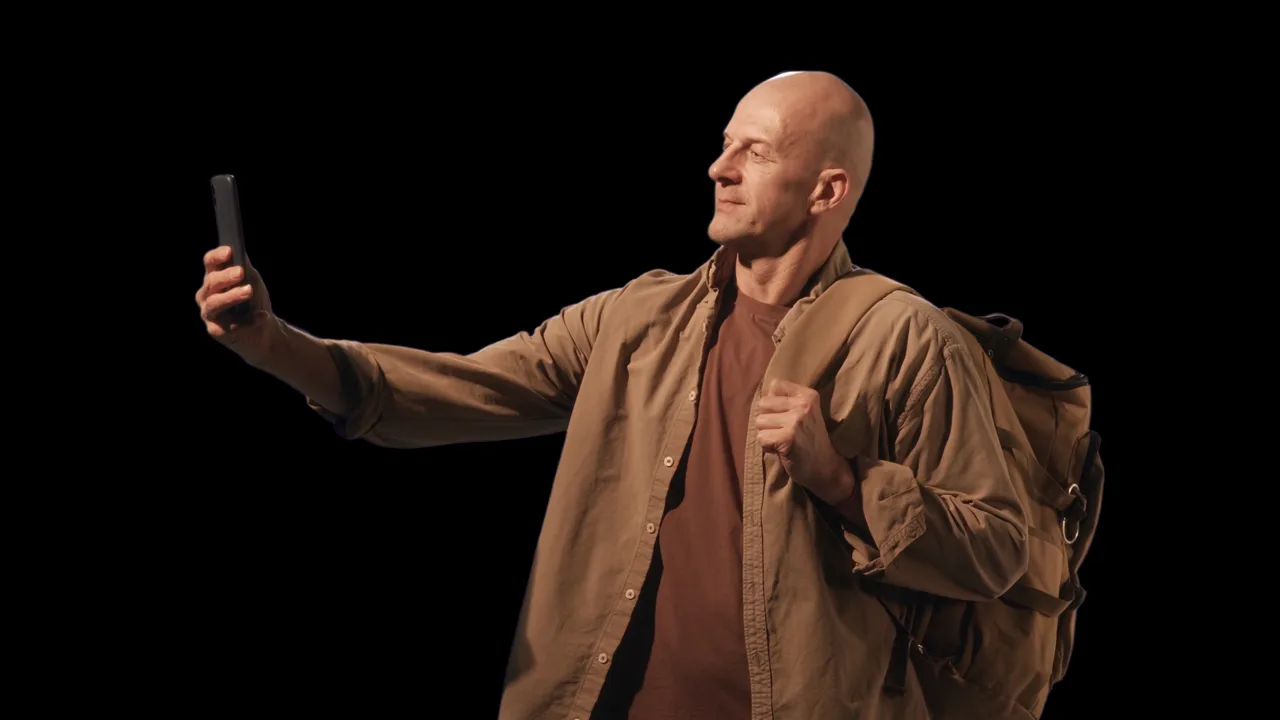
Despill Strength 0 against 1.