Anonymizer
Swap every face with a random AI-generated one, or blur and pixelate faces automatically.
1. Description
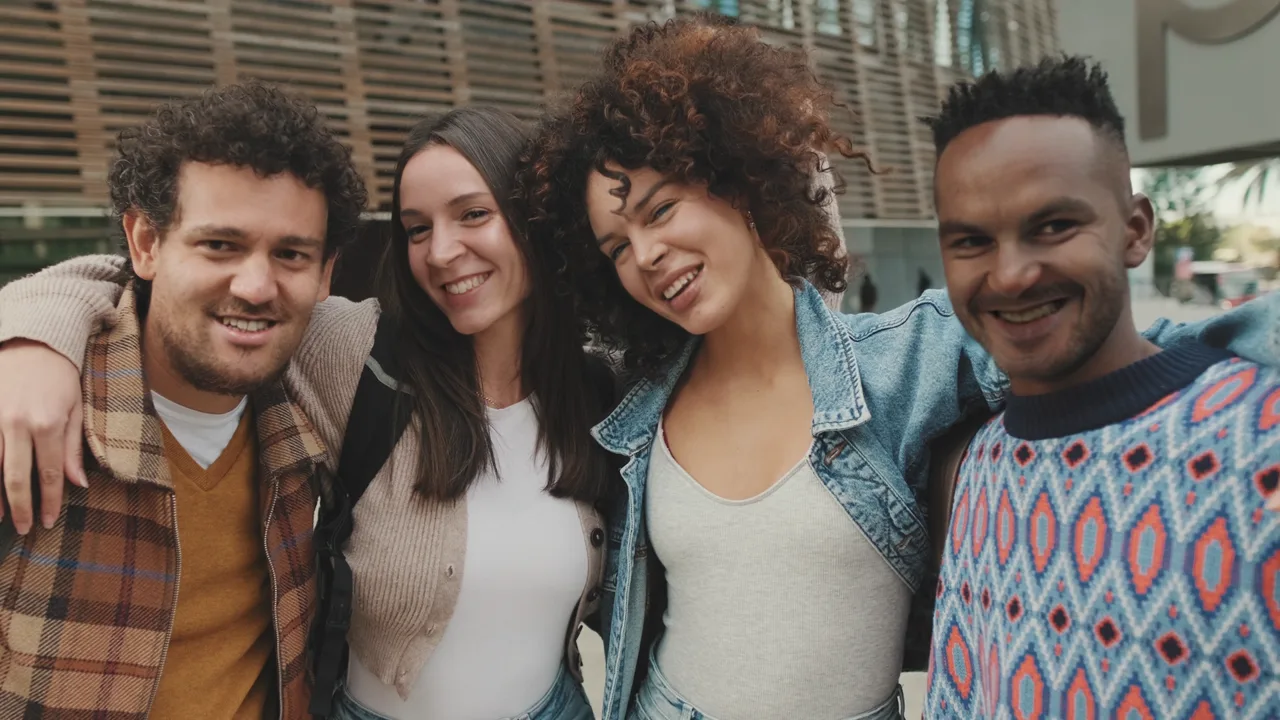
Anonymizer finds the faces in every frame and replaces them with faces of people who don't exist, taken from a library of AI-generated faces. The result still looks like real people, but they can no longer be recognised. It can also blur or pixelate faces automatically, on their own or on top of the swap, with no tracking or masks.
Replacement faces can match the gender, ethnicity and age of the original, and Stabilization keeps each person on the same new face across the shot. The effect sits in the Baskl category.
On frames that contain faces, the whole frame is processed at 8 bits per channel, so 16- and 32-bit footage loses its extra precision there.
Requirements
- Mac: Apple Silicon or Intel. Uses Core ML (GPU and Neural Engine) when available, otherwise the CPU.
- Windows: 64-bit. Uses an NVIDIA GPU (CUDA) when available, otherwise the CPU, which is much slower.
- Disk: about 900 MB of AI models.
2. Installation
2a. Baskl installer (all host apps)
Every Baskl plugin installs through the Baskl installer. It sets up AI Machine, the local engine the plugins run on, and puts Anonymizer in the right place for After Effects, Premiere Pro and OFX hosts (DaVinci Resolve, Nuke). Close your host apps before running it.
macOS
- Click Download on baskl.ai, unzip
Baskl.Installer.zipand openMac/Baskl Installer.app. You need an Apple Silicon Mac; the installer stops on Intel Macs. - If macOS asks, confirm you want to open an app downloaded from the internet, then enter your Mac password so the installer can write to the system plug-in folders.
- Click Let's Get Started, select Anonymizer in the plugin list and click Install. The first install also downloads AI Machine, so give it a few minutes.
- When you see Installation Complete, restart your host app. The effect is in the Baskl category.
Windows
- Click Download on baskl.ai, unzip
Baskl.Installer.zipand runWindows\Baskl Installer.exe. - Click Yes when Windows asks to allow the app to make changes. The installer needs administrator rights.
- Click Let's Get Started, select Anonymizer in the plugin list and click Install. On NVIDIA cards the installer picks the matching CUDA build for you. The first install also downloads AI Machine, so give it a few minutes.
- When you see Installation Complete, restart your host app. The effect is in the Baskl category.
- The first render downloads any AI models that are missing (up to about 900 MB) and loads them, so it can take a few minutes, once.
Activating your license
- After Effects / Premiere Pro: in After Effects, click Register at the top of the effect in Effect Controls (next to Reset), paste your license key and click Activate. In Premiere Pro, click the small icon button at the top right of the effect in Effect Controls to open the same dialog. The license is saved for the whole computer, so registering in one of the two apps covers the other.
- Resolve / Nuke: click Register at the top of the effect's controls, paste your license key and confirm. Once activated, the button reads License Info.
- Where to find your key: if you bought on baskl.ai, it is in your purchase email and under Account → My Licenses, with a Copy button. If you bought on aescripts + aeplugins, activate through the aescripts + aeplugins manager app, or paste the key from your aescripts account into the same Register dialog.
- Without a license, Anonymizer runs as a trial: everything works, but renders carry a watermark until you register. Activation needs an internet connection, and each key works on a limited number of computers (shown under My Licenses).
3. Parameters
General
- Help / Contact
-
Opens the Baskl contact page in your browser.
- Reconnect
-
Only shown when the effect can't reach AI MACHINE. Start AI MACHINE, then click it.
Faces
Anonymize, Blur and Pixelate can be combined. With all three off, the image passes through unchanged.
- Faces
-
Which detected faces to process.
- Anonymize
-
Replaces each face with an AI-generated face. On by default.
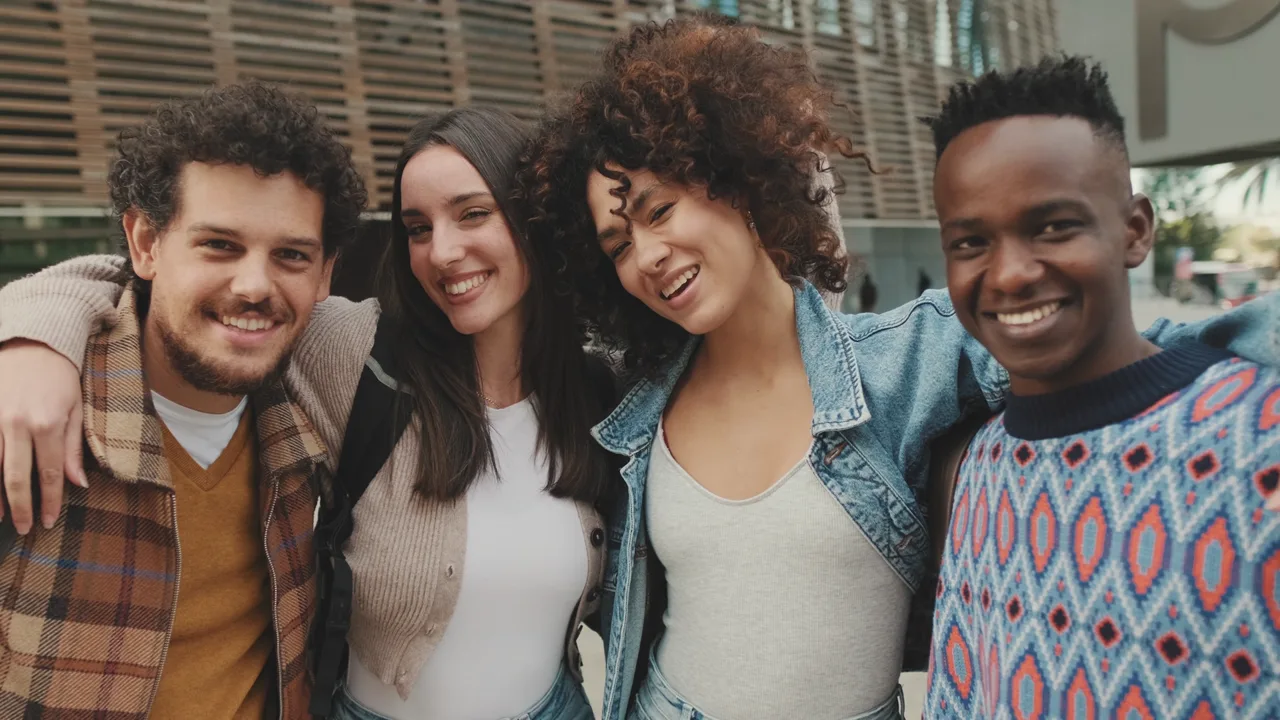
Every face replaced by an AI-generated one. - Blur
-
Blurs each face inside a soft oval, from 0 (off, default) to 100.
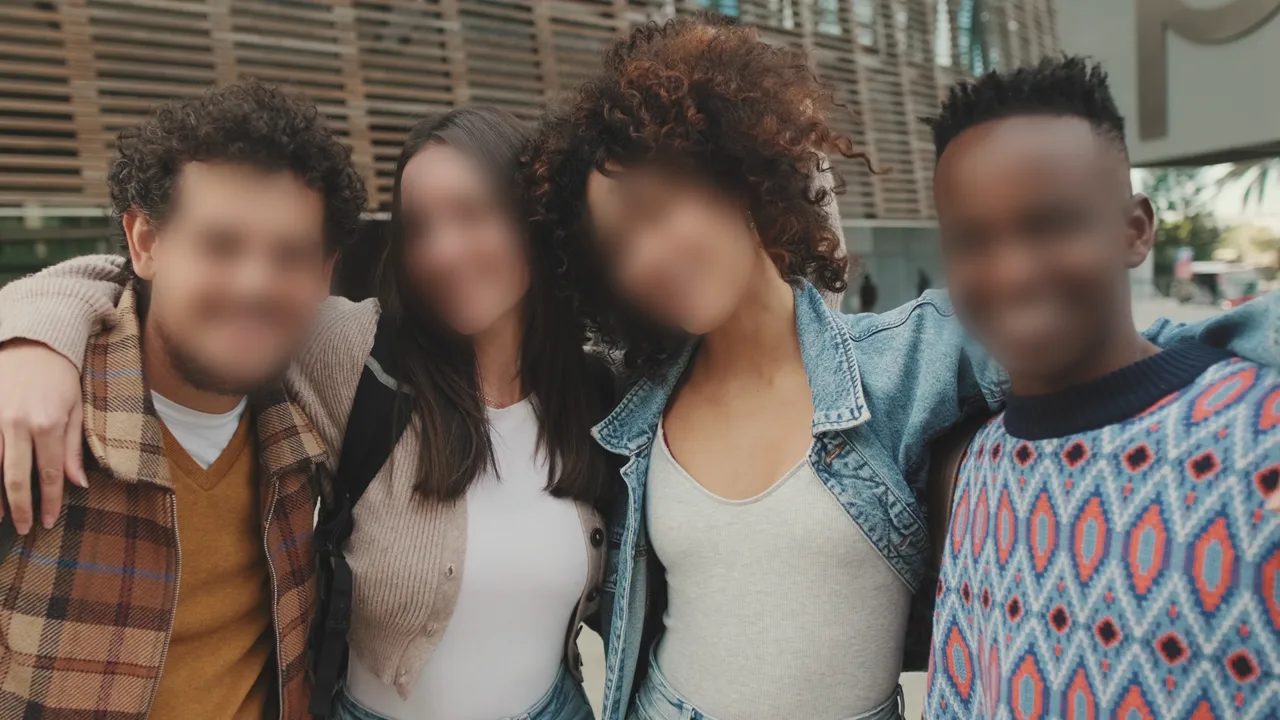
Anonymize off, Blur 60. - Pixelate
-
Turns each face into a mosaic, from 0 (off, default) to 100. Higher makes bigger blocks.
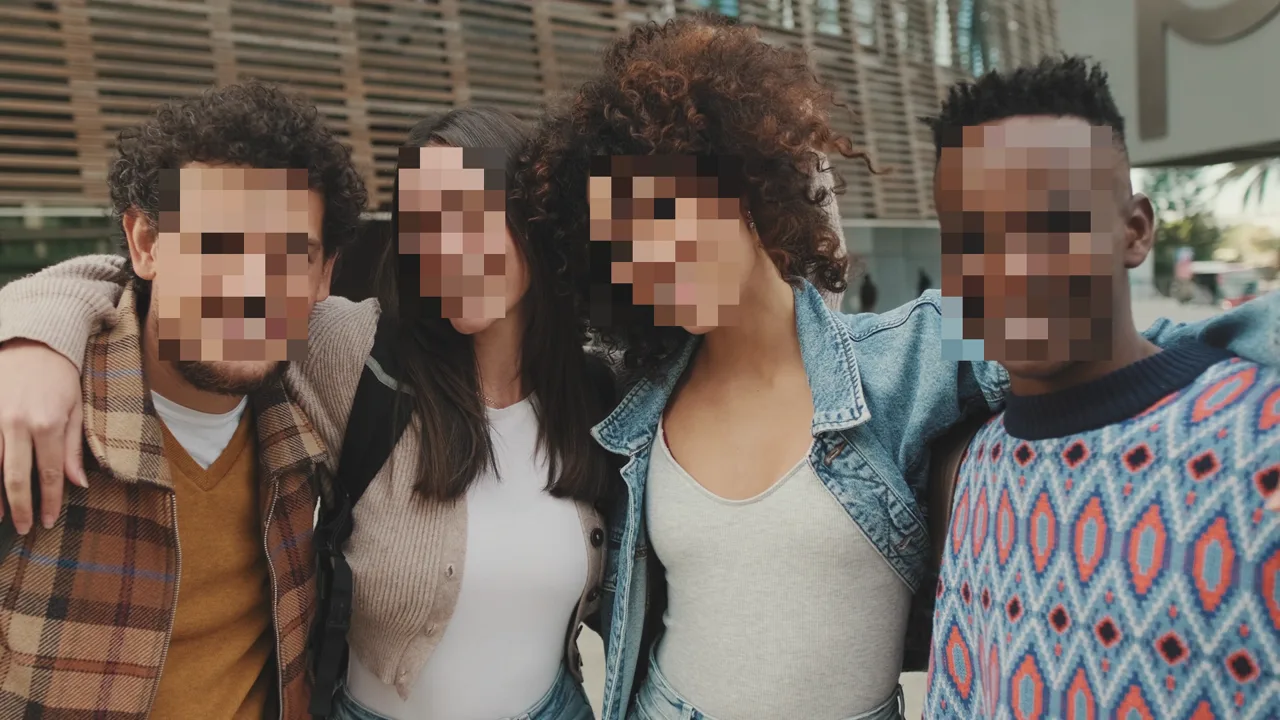
Anonymize off, Pixelate 60.
Anonymize Settings
Only used when Anonymize is on. In After Effects the group is hidden while it is off.
- Random Seed
-
Picks a different set of replacement faces. Change it until you like the faces you get. Default 45.
- Stabilization
-
How each person keeps the same new face from frame to frame.
- Max Identities
-
Identity mode only. The most different people the effect will remember, from 2 to 500 (default 20). Once it is reached, new faces reuse the closest existing person. Lower is more stable but may give two people the same face; set it close to the number of people in the shot.
- Match Gender
-
Picks a replacement face of the same gender. On by default.
- Match Race
-
Picks a replacement face of the same ethnicity. On by default.
- Match Age
-
Picks a replacement face of a similar age, within one age group either side. On by default. If no face in the library matches every enabled Match option, any face can be used.