AI Depth Of Field
Realistic depth-aware bokeh blur that finds your subject and focuses on it.
1. Description

AI Depth Of Field adds a shallow, cinematic focus to footage shot with everything sharp. A neural network estimates the depth of every frame, and a bokeh blur is applied according to how far each pixel is from the focus plane, so the background, the foreground or both fall out of focus.
By default a second network finds the main subject and focuses on it automatically. You can also focus on a point you pick or at a set distance, give the near and far sides different blur, shape the bokeh and make highlights glow. The alpha channel is kept as is.
Requirements
- Mac: Apple Silicon (M1 or later), runs on the GPU. Intel Macs are not supported.
- Windows 10 or 11, 64-bit: uses an NVIDIA GPU (CUDA) when available, otherwise the CPU.
- The Baskl installer is required: it downloads the AI models (about 160 MB) and, if not installed yet, the AI MACHINE render engine.
2. Installation
2a. Baskl installer (all host apps)
Every Baskl plugin installs through the Baskl installer. It sets up AI Machine, the local engine the plugins run on, and puts AI Depth Of Field in the right place for After Effects, Premiere Pro and OFX hosts (DaVinci Resolve, Nuke). Close your host apps before running it.
macOS
- Click Download on baskl.ai, unzip
Baskl.Installer.zipand openMac/Baskl Installer.app. You need an Apple Silicon Mac; the installer stops on Intel Macs. - If macOS asks, confirm you want to open an app downloaded from the internet, then enter your Mac password so the installer can write to the system plug-in folders.
- Click Let's Get Started, select AI Depth Of Field in the plugin list and click Install. The first install also downloads AI Machine, so give it a few minutes.
- When you see Installation Complete, restart your host app. The effect is in the Baskl category.
Windows
- Click Download on baskl.ai, unzip
Baskl.Installer.zipand runWindows\Baskl Installer.exe. - Click Yes when Windows asks to allow the app to make changes. The installer needs administrator rights.
- Click Let's Get Started, select AI Depth Of Field in the plugin list and click Install. On NVIDIA cards the installer picks the matching CUDA build for you. The first install also downloads AI Machine, so give it a few minutes.
- When you see Installation Complete, restart your host app. The effect is in the Baskl category.
- The first render after opening your host loads the AI models, so it takes a little longer than the following frames.
Activating your license
- After Effects / Premiere Pro: in After Effects, click Register at the top of the effect in Effect Controls (next to Reset), paste your license key and click Activate. In Premiere Pro, click the small icon button at the top right of the effect in Effect Controls to open the same dialog. The license is saved for the whole computer, so registering in one of the two apps covers the other.
- Resolve / Nuke: click Register at the top of the effect's controls, paste your license key and confirm. Once activated, the button reads License Info.
- Where to find your key: if you bought on baskl.ai, it is in your purchase email and under Account → My Licenses, with a Copy button. If you bought on aescripts + aeplugins, activate through the aescripts + aeplugins manager app, or paste the key from your aescripts account into the same Register dialog.
- Without a license, AI Depth Of Field runs as a trial: everything works, but renders carry a watermark until you register. Activation needs an internet connection, and each key works on a limited number of computers (shown under My Licenses).
3. Parameters
General
- Help / Contact
-
Opens Baskl support. We're here if you need us.
Blur
- Different Radius Near/Far
-
Off: Radius sets the blur on both sides of the focus plane. On: Radius sets the blur in front of it and Radius Far the blur behind it. Off by default.
- Radius
-
How strong the blur is (0 to 100, default 30). With both radii at 0 the footage passes through untouched.

Default settings: auto focus on the subject, Radius 30.

Radius 30 against 60. - Radius Far
-
Blur behind the focus plane, when Different Radius Near/Far is on (0 to 100, default 30). Grayed out otherwise.
- Aspect Ratio
-
The shape of the bokeh (0 to 2, default 1). 1 is round; above 1 stretches it vertically, below 1 flattens it toward a horizontal streak.
- Highlight Glow
-
Makes bright spots bloom into glowing bokeh balls (0 to 100%, default 10%).
- Quality
-
How many samples the blur takes (0 to 100%, default 100%). Lower renders faster but looks grainier.
Focus
- Auto Focus on Subject
-
The AI finds the main subject in each frame and focuses on it. It picks the most prominent object, not specifically faces or eyes. On by default; while it is on, Focus By Point, Focus Point and Focus Distance are grayed out.
Focus Mask
- Show Focus Mask
-
Shows where the blur goes instead of the result: white stays sharp, black gets the largest blur. Useful for setting the focus. Off by default.
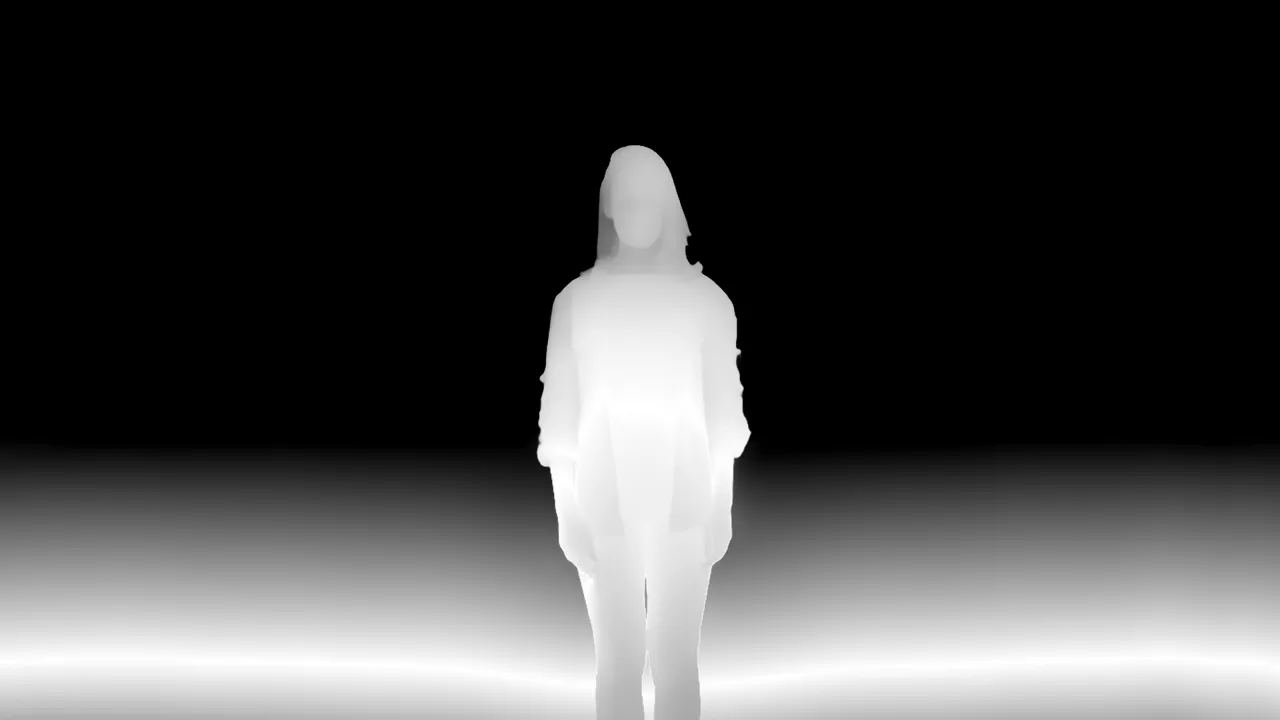
The focus mask: white stays sharp, black gets the most blur. - Focus By Point
-
Focuses at the depth under Focus Point instead of using Focus Distance. Off by default.
- Focus Point
-
The point to focus on when Focus By Point is on (default: center of the frame). Animate it to pull focus between subjects.
- Focus Distance
-
Where the focus plane sits, from 0 (nearest) to 100 (farthest), default 50. Used when Auto Focus and Focus By Point are both off.
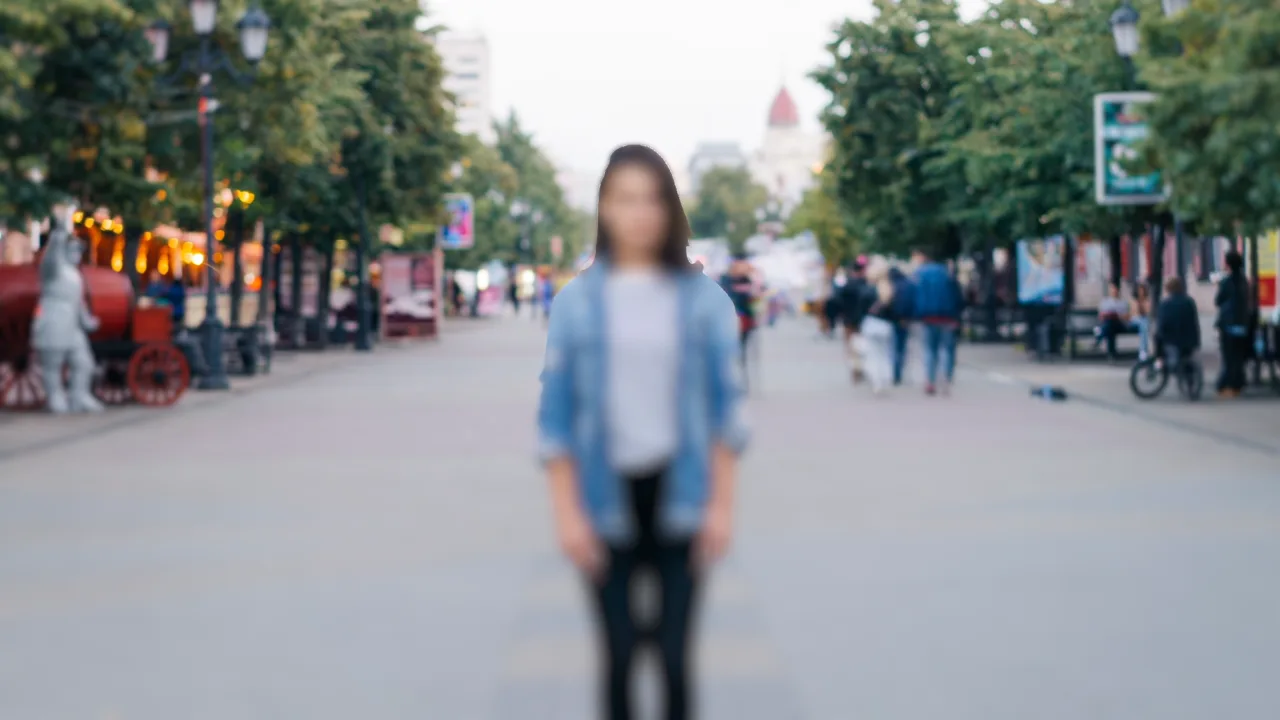
Auto focus off and Focus Distance 90: the background is sharp, the subject blurs. - Focus Region Size
-
How deep the sharp zone is (0.1 to 50, default 5). Higher keeps more of the scene around the focus plane sharp; lower makes the blur ramp up sooner.
Advanced
- Depth Quality
-
The size (short side) the AI analyses the frame at, from 1 (256 px, fastest) to 5 (1280 px, most detailed), default 3 (768 px). Higher gives cleaner depth edges and is slower.
- Enable Focus Clarity
-
Blends the original, untouched pixels back in near the focus plane, so the subject keeps its full detail. On by default.
- Focus Clarity Amount
-
How quickly the result switches from original pixels to blur as you move away from focus (100 to 1000, default 500). Higher keeps original detail in a narrower zone. Grayed out when Focus Clarity is off.